Table of Contents
On-billing
What is on-billing?
On-billing lets one TimePro business unit record time for work that another business unit will invoice to the client. Enter the time once in the source tenant. A target-tenant copy is created using the configured client and project, ready for the normal invoice process.
For example, an employee in SSW EU works on a project that SSW AU invoices to the client. The employee enters time in SSW EU; the auto-generated target copy lets SSW AU review and invoice that work.
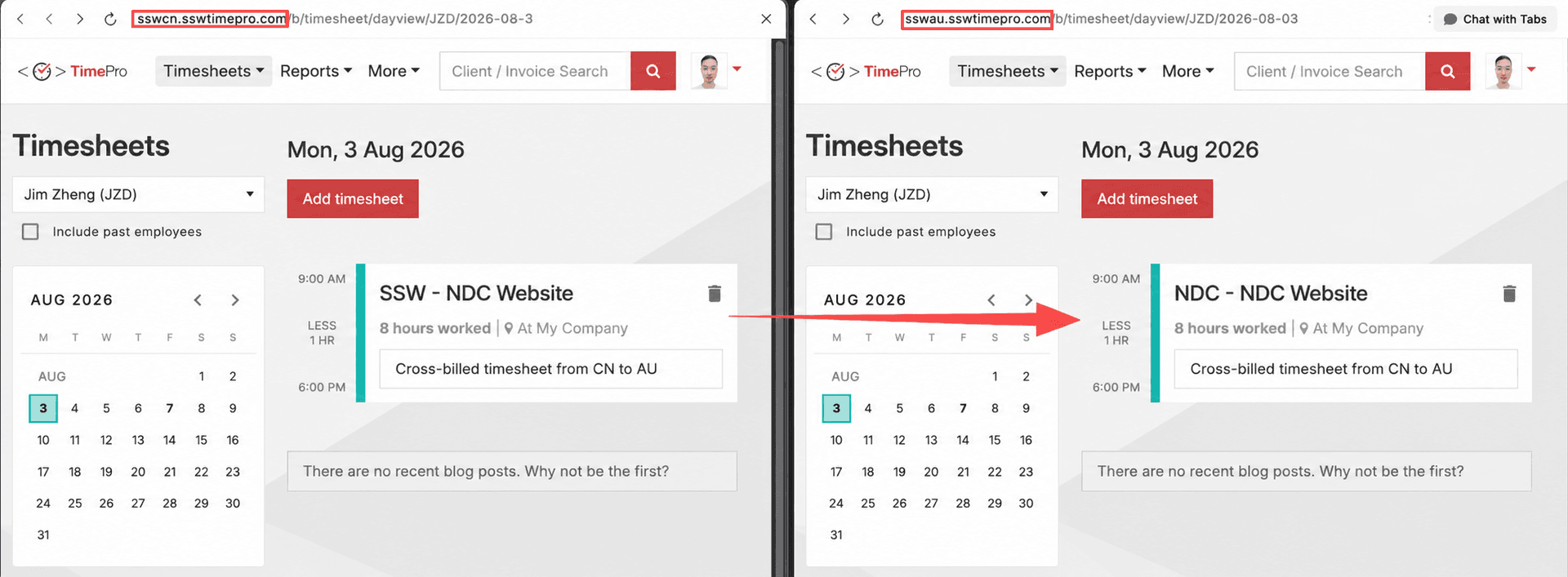 Figure: Source timesheet creating target-tenant timesheet
Who does what?
| Role | Responsibility |
|---|---|
| Team member | Create time against the assigned project as usual. |
| Billing team | Review and invoice the target-tenant timesheet. |
| Account manager or project-system administrator | Set the project's on-billing destination in the system that supplies project mappings to TimePro. |
| TimePro administrator | Configure the approved On-Billing webhook subscriber in the source tenant. |
Set up an on-billing project
Set up on-billing before the team starts recording time. The target tenant needs an existing client and project for the work to be invoiced against.
1. Set the destination in your project system
Configure the source project's on-billing destination in the system connected to your TimePro deployment. Your field names may differ, but the mapping needs the equivalent of:
- Business unit — the target TimePro tenant
- Client — the client in the target tenant
- Project — the project in the target tenant
The connected project system is the source of truth; TimePro shows a read-only copy. Change the destination in that system rather than in TimePro.
Example: SSW uses Dynamics 365 CRM for this mapping. Your organisation can use another connected system, such as Salesforce, provided its TimePro integration supplies the required destination mapping.
2. Configure the webhook subscriber
In the source tenant, a TimePro administrator must configure and enable the organisation's approved On-Billing webhook subscriber:
- Go to Admin | Webhook.
- Add or edit the approved subscriber.
- Subscribe it to required events e.g. timesheet.create.
- Enable the subscriber and save it.
The subscriber uses organisation-managed connection details. Do not replace it or change its connection details unless you are following the approved setup process. See Set up webhooks for the general setup steps.
3. Confirm the mapping in TimePro
Open the source project in TimePro and confirm that the read-only On-billing fields show the intended destination. If they are blank or incorrect, update the mapping in the connected project system and ask the integration administrator to confirm it has synchronised.
 Figure: Read-only On-billing fields on project
Record and invoice time
Team members: record time normally
In the source tenant, select the on-billing project and create the timesheet as usual. No extra action is needed on the timesheet.
Billing teams: review and invoice the target copy
In the target tenant, find the copied timesheet against the configured client and project. Review it, then invoice it through the normal TimePro workflow.
On-billing creates the target timesheet; it does not create an invoice.
Change an on-billing destination
Before changing a mapping, check whether time has already been copied or invoiced in the target tenant. Coordinate with the source and target billing teams to resolve existing records first.
- Update the business unit, client, or project in the source project's on-billing mapping in the connected project system.
- Confirm the read-only destination in the TimePro project after the mapping has synchronised.
- Check the next new timesheet in the target tenant before invoicing it.
The new mapping is used for future timesheets. Existing target timesheets stay where they were created and must be resolved manually.