Table of Contents
Recurring Invoices
What are they?
Recurring invoice templates tell TimePro to create product invoices on a schedule - for one product or many. A daily job generates real invoices when each billing period is due. You then handle them like any other invoice (review, send, sync to Xero, etc.).
Why use them?
When billing repeats (e.g. monthly hosting, annual support), creating invoices by hand is easy to forget or get wrong. Set up the template once with the client, products, and schedule.
Where to find them?
Option A: From the menu
Navigate to: Invoices | New Recurring Invoice Template
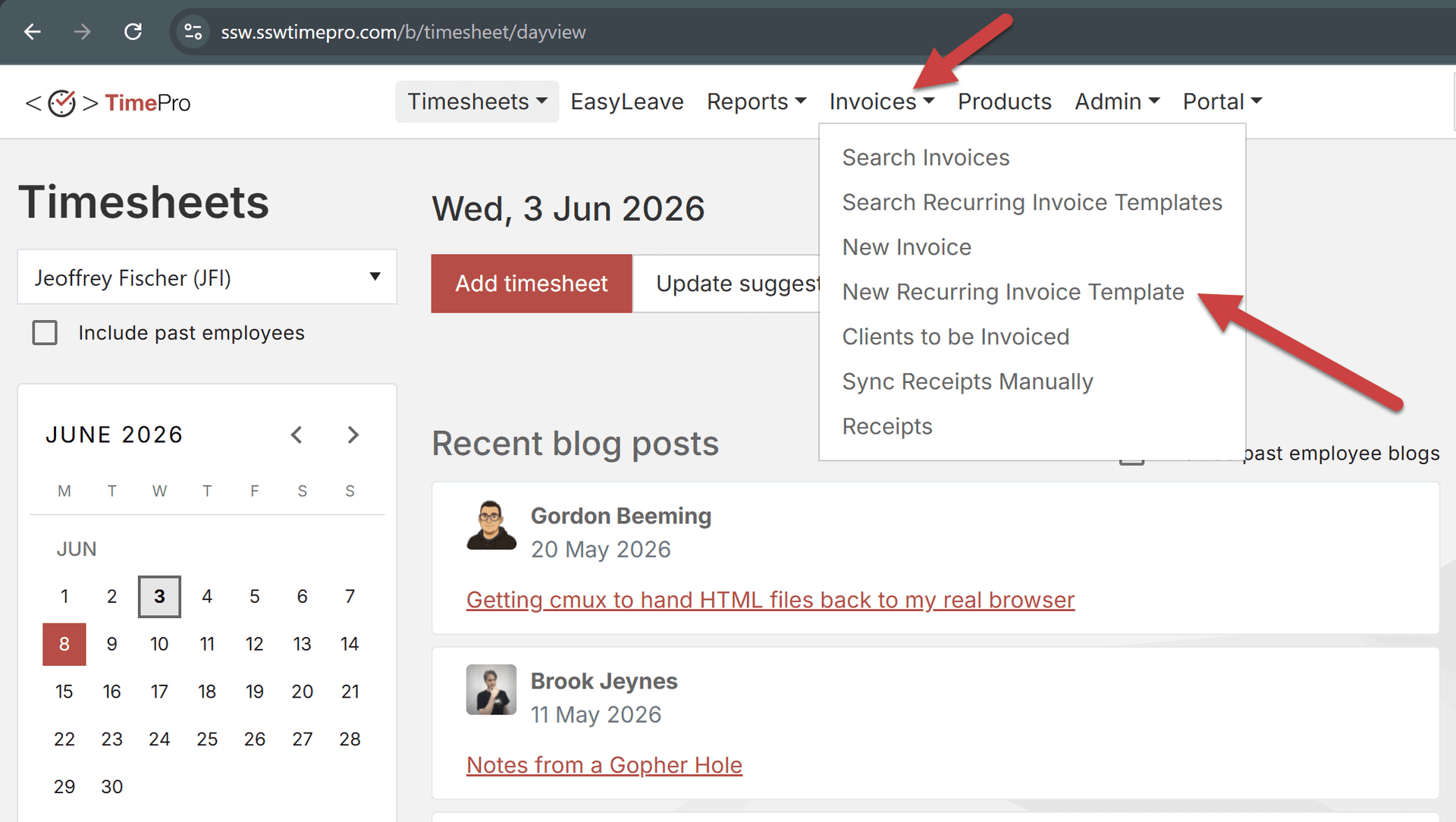 Figure: Menu - New Recurring Invoice Template
Note: You can find existing templates by going to: Invoices | Search Recurring Invoice Templates
Option B: From a client page
Navigate to: Admin | Clients | Select a client | New Recurring Invoice
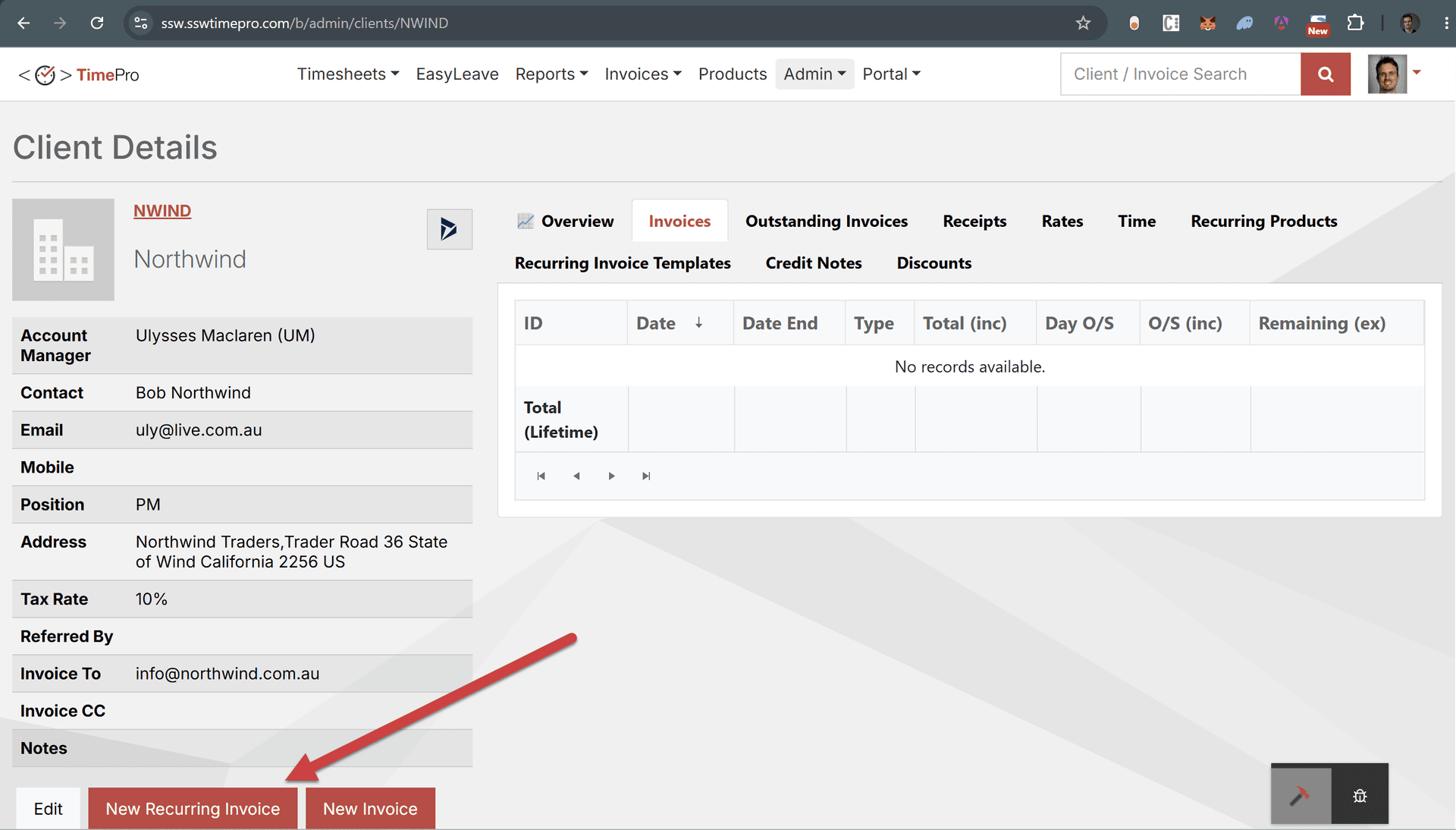 Figure: Client Details - New Recurring Invoice
Templates for that client are listed on the Recurring Invoice Templates tab.
How to configure them?
Once you're on the Recurring Invoice Template, fill in the fields below:
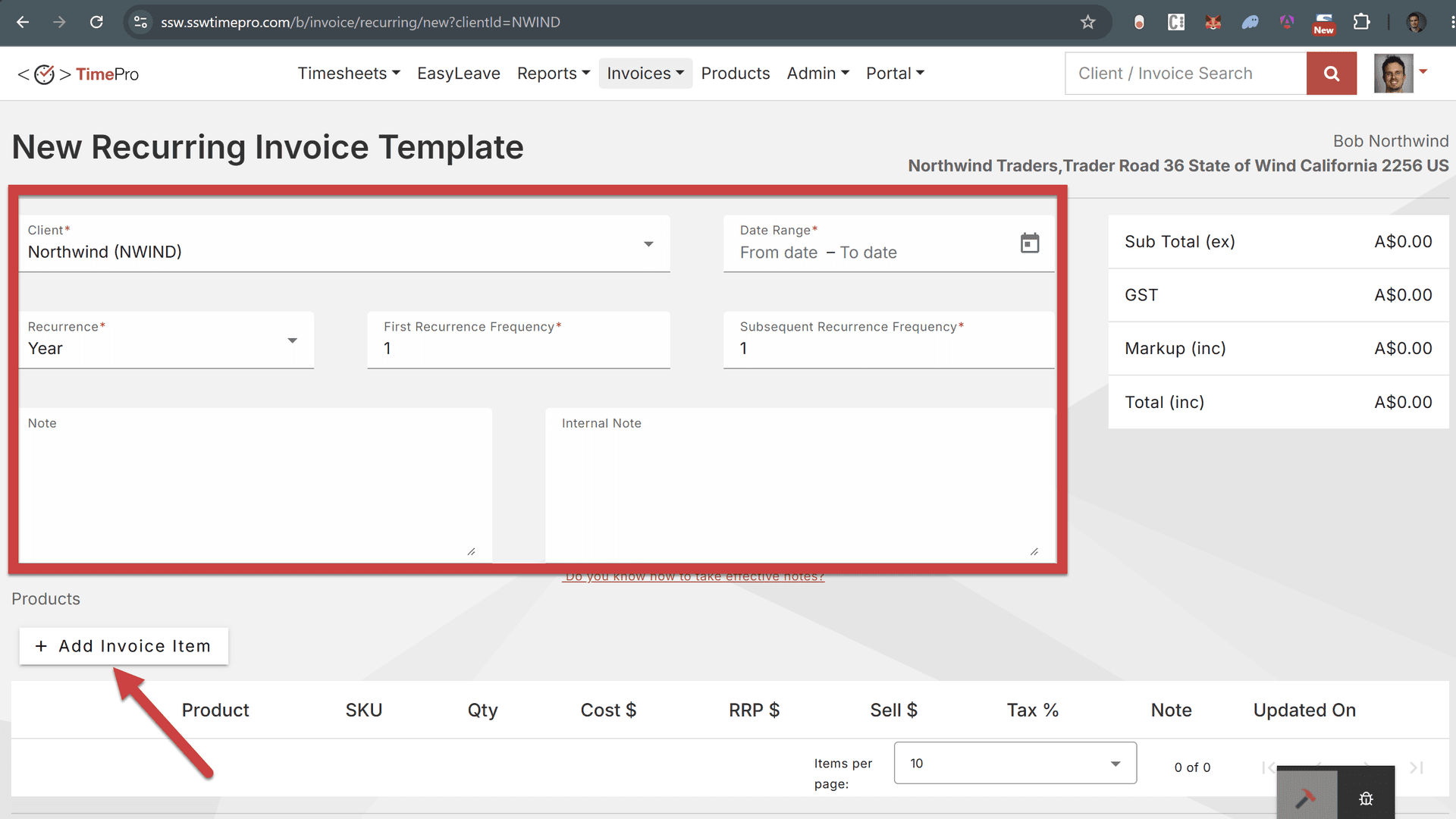 Figure: Recurring Invoice Template form
- Client - Who to bill. On a new template from the menu, pick from the dropdown (or search). From client details, it’s already set.
- Date Range - From (required): when billing can start. To (optional): last day invoices can be generated; leave blank for no end.
- Recurrence - Unit for billing periods: Year, Month, or Day.
- First Recurrence Frequency - Length of the first invoice period (in recurrence units). e.g. Month + 3 = first invoice covers 3 months.
- Subsequent Recurrence Frequency - Length of later periods (same units). e.g. Month + 1 = each later invoice is 1 month. Set to 0 to stop after the current period.
- Note / Internal Note - Copied to each generated invoice (client vs staff-only).
- Add Invoice Item - Adds products to the template (Product, SKU, Qty, Cost, RRP, Sell, Tax, etc.). Same dialog as on a normal product invoice.
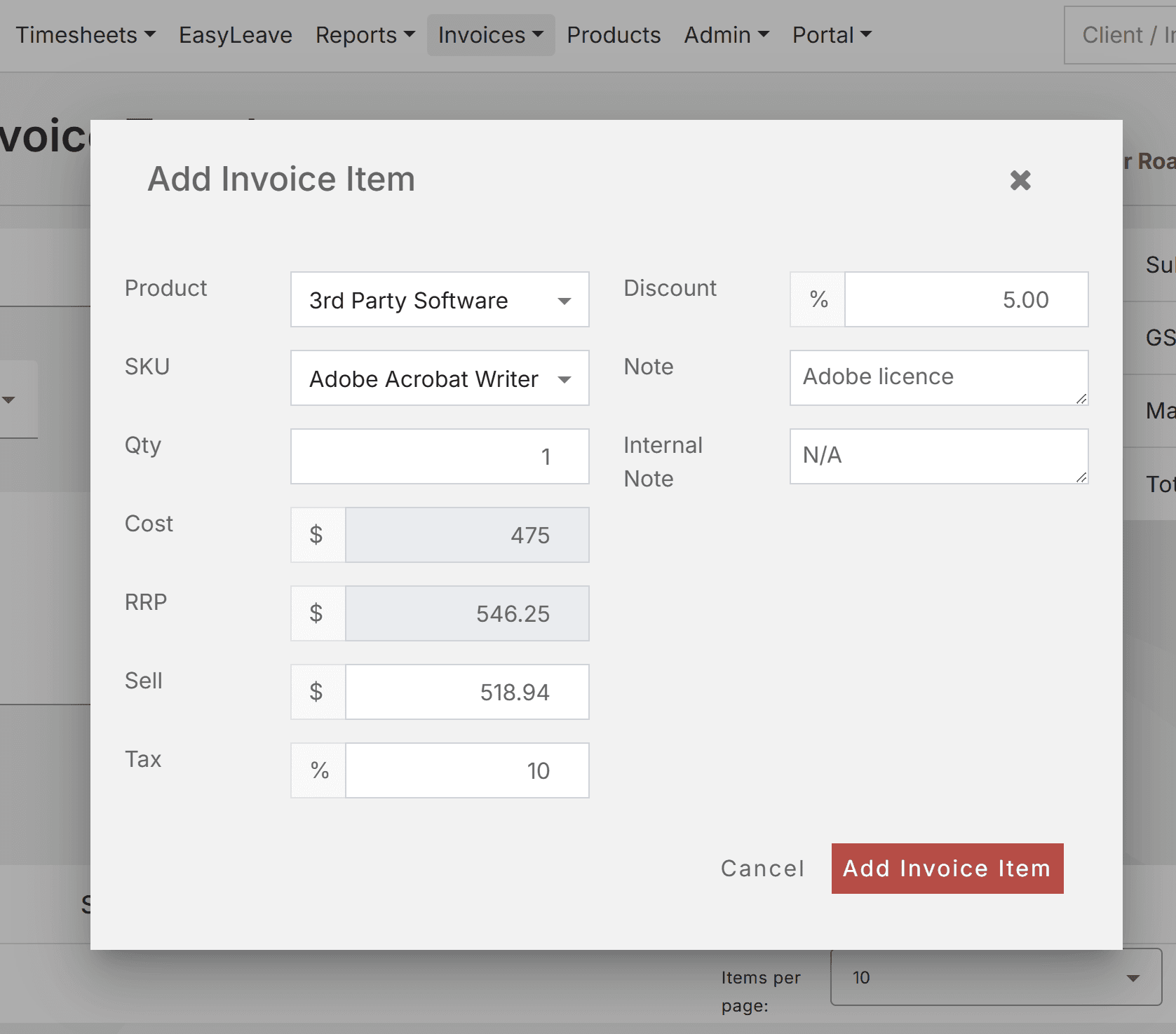 Figure: Add invoice item
Once you're happy with your configuration, hit Save on the template.
What now?
Invoices are not created immediately: they’re generated on the Scheduler - that runs once an hour - when the next period is due.
You can find the generated invoices under Invoices | Search Invoices (filter with Only Show Recurring Invoices if needed).