Table of Contents
Sync with Dynamics 365
This guide walks you through connecting your TimePro tenant to Microsoft Dynamics 365. Once configured, TimePro can pull clients, projects, and users from Dynamics 365.
Open the Dynamics 365 sync page
From your TimePro tenant - e.g. contoso.sswtimepro.com
- In the menu, go to Admin | Dynamics 365

Figure: Where to find Dynamics 365 integration
Setup your Dynamics 365 Configuration
If Dynamics 365 is not yet configured, you will need to add a connection. If it is already configured, click Edit to update the settings.
- Dynamics 365 Connection Type - choose between Active Directory (OnPrem) for on-premises Dynamics 365 or Client Secret (Cloud) for Dynamics 365/Dataverse in the cloud
The next fields will depend on the connection type you chose before:
Active Directory (OnPrem)
- Dynamics 365 URL - Enter your Dynamics 365 URL - e.g.
ssw-uat.crm6.dynamics.com - Dynamics 365 Login - Enter your Active Directory login
- Dynamics 365 Password - Enter your Active Directory password
- Domain - Enter your Active Directory domain
Client Secret (Cloud)
- Dynamics 365 URL - Enter your Dynamics 365 URL - e.g.
ssw-uat.crm6.dynamics.com - Dynamics 365 Client Id - Enter your Cloud Client Id
- Dynamics 365 Client secret - Enter your Cloud Client secret
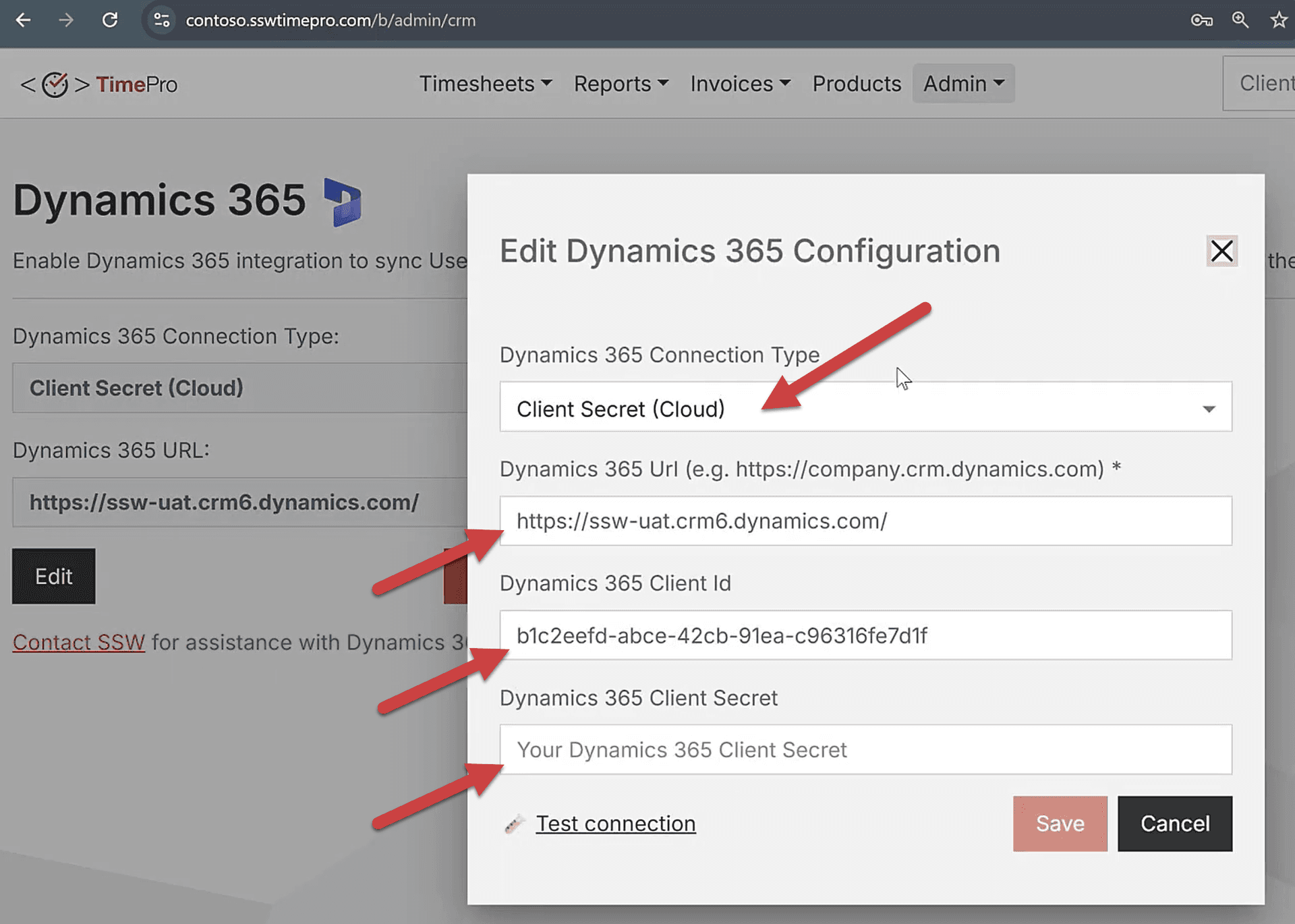 Figure: Dynamics 365 - Example of a Cloud configuration
Note for Azure users
If you use Azure as your Cloud provider, you can find your Client Id and secrets under Azure App Registration | Manage | Certificates & secrets Figure: Azure App Registration - Where to find your Client Id and secret
Test and Save the Connection
- Click Test connection to verify the connection works.
- Once the test succeeds, click Save. This will save your settings in your tenant database.
Run the sync
- Back on the Dynamics 365 page, click the Sync button.
- In the Sync with Dynamics 365 dialog, select a Sync Range - from Last 24 hours to Full sync. We recommend using a Full Sync on your first sync.
- Click Start Sync.
Wait for the sync to complete. The page shows "Sync in progress..." while running, then displays "Sync completed" along with a result of how many entities were created and updated.
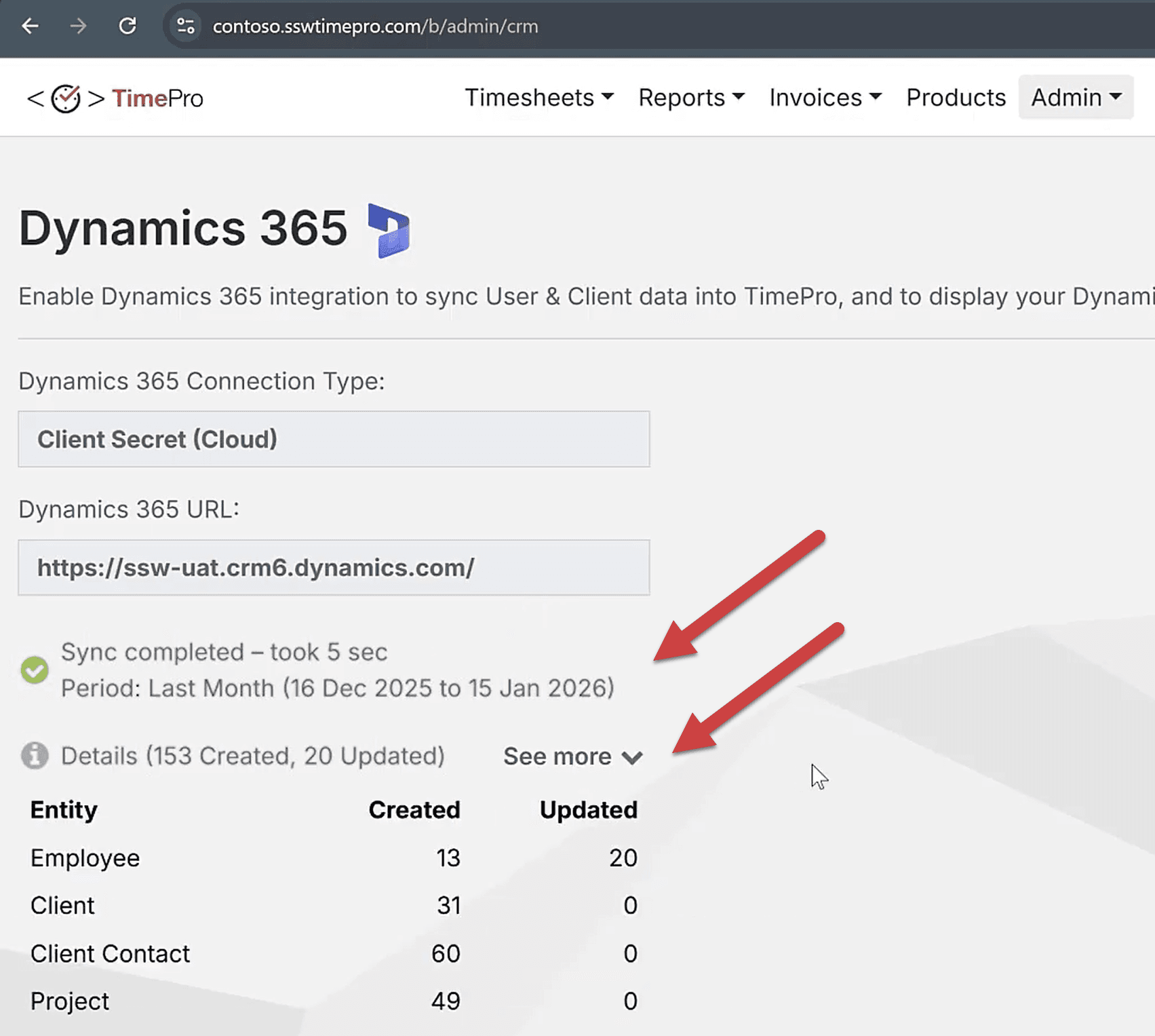
Figure: Sync completed - Results with created and updated entities counts
View the Synced Clients
Go to Admin and choose between Users, Clients or Projects. The synced data from Dynamics 365 now appears in each of these categories.
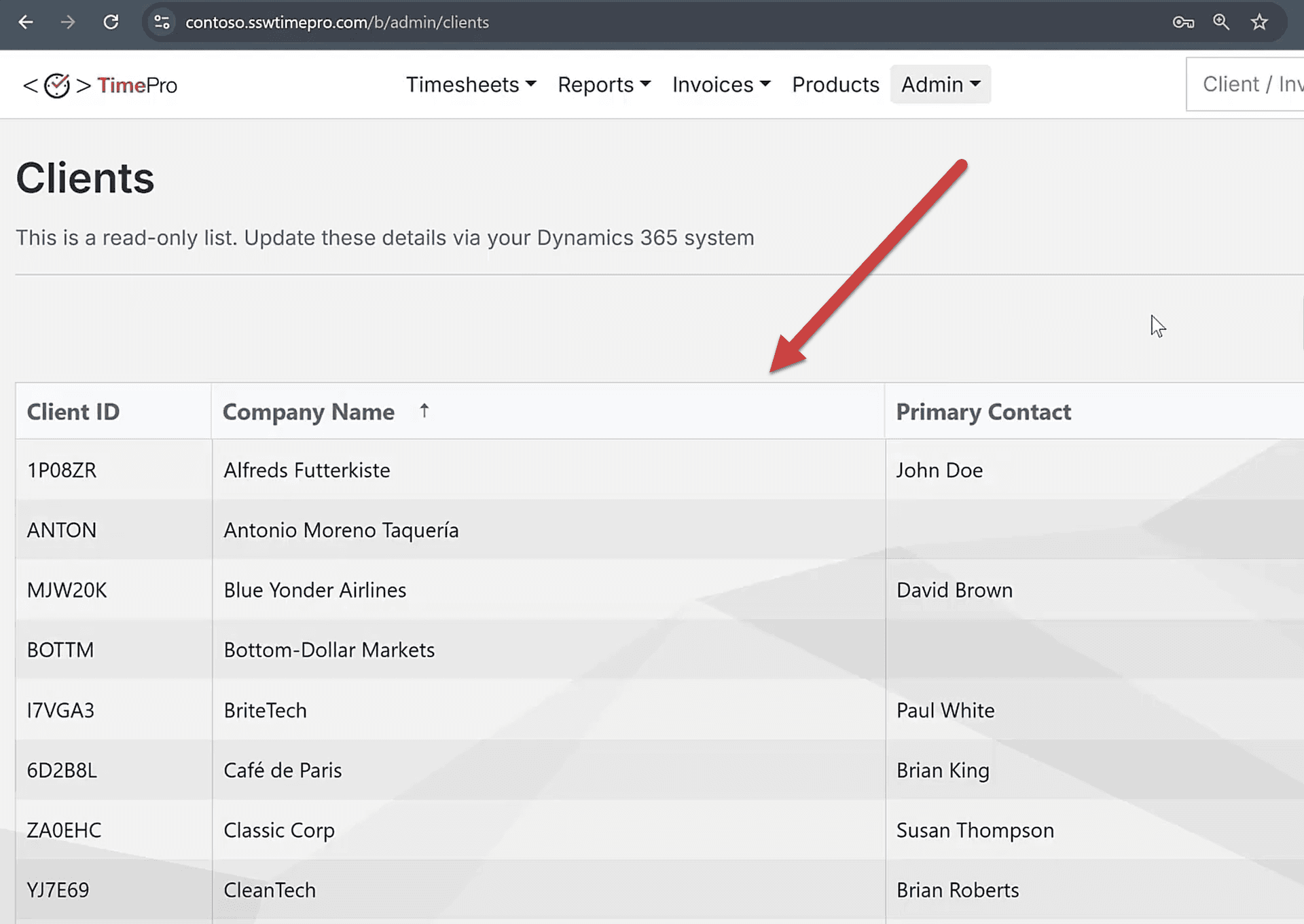
Figure: Admin Clients list showing synced Dynamics 365 clients
What Gets Synced
The sync imports Users, Clients, and Projects from Dynamics 365 into TimePro. The sync only adds or updates records - it does not delete records in either system. Any Dynamics 365 entities updated within the selected sync range will be imported.