Table of Contents
Manage currencies
When you use TimePro for invoicing international clients, sometimes you need to issue invoices in different currencies than your default one. Here is how you can set it up.
Navigate to the Currencies setting
Here's how to find the Currencies setting:
- In the menu, go to Admin | Invoice Settings
- Scroll down to the Currencies section
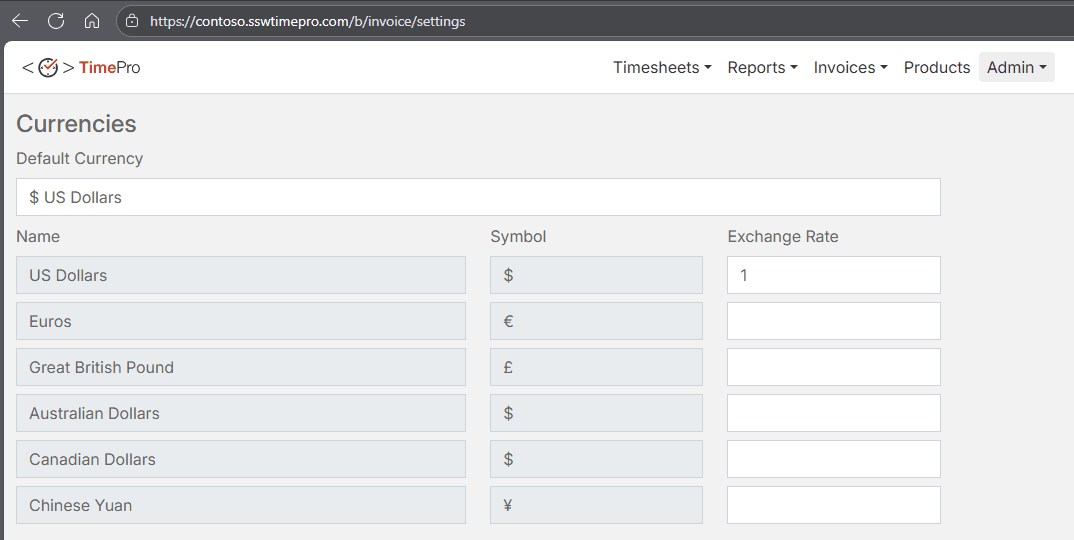 Figure: Currencies section in Invoice Settings
Activate multiple currencies
There are a few currencies out of the box that you can activate immediately e.g. $ USD, $ AUD, € EUR, etc. If you need additional currencies outside the list, please contact support for assistance.
To activate a new currency,
- Put an Exchange Rate value for that currency
- Click Save at the bottom
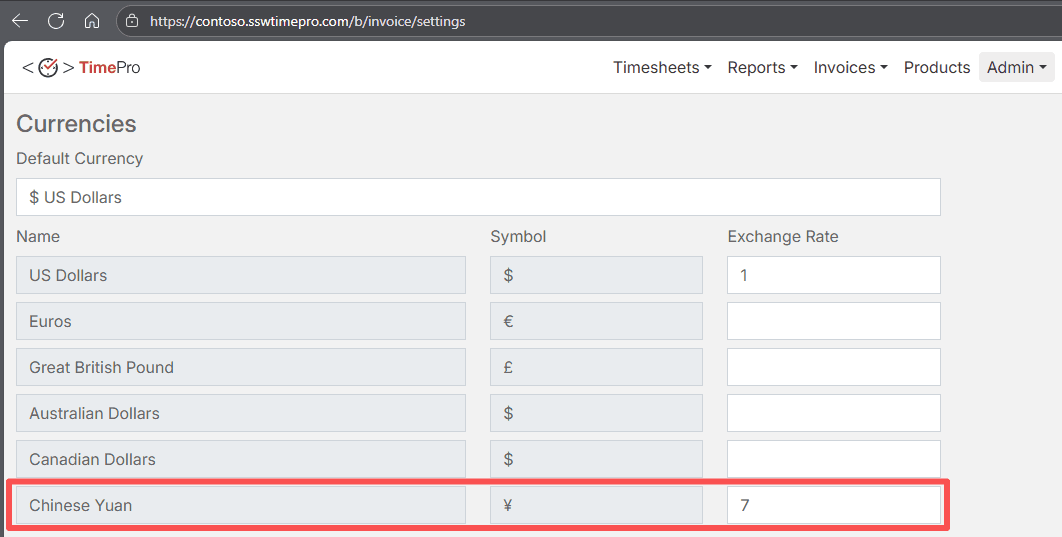 Figure: Activate Chinese Yuan by putting a “7” in the Exchange Rate field
This exchange rate is determined by your company and reflects how currencies are converted internally in your system. When you change the currency used for an invoice, this is the ratio by which the numbers will be converted. For instance, in the figure above, 1 USD = 7 CNY.
Choosing currencies for your invoice
Now you can use all the activated currencies on your invoice.
- In the menu, go to Invoices | New Invoice
- In the Invoice Currency field, choose a currency for your invoice
 Figure: Choose from activated currencies