Table of Contents
Create a Product
What are they?
Products are the items and services you sell through TimePro. They power product invoices, recurring invoice templates, and (optionally) the SSW website shopping experience.
TimePro organises sellable items in 3 levels:
| Level | What it is | Example |
|---|---|---|
| Product Category | Groups related products for browsing and reporting | Consulting, Training, Software |
| Product | The thing you sell at a high level | SSW TimePRO, Angular Superpowers |
| SKU | A specific sellable variant with its own price, account, and billing rules | TimePRO Annual Support, Angular Superpowers - Sydney 2026 |
Tip: When adding a line to an invoice, you pick a Product and then a SKU. The SKU supplies default Cost, RRP, and Sell amounts.
A product without at least one SKU cannot be added to an invoice. In practice, you usually create the category, product and SKU in one session.
How to open the Products page
Products appears in the top navigation when you have Admin access and Invoices are enabled for your tenant.
Go to Products (or /products/dashboard).
The dashboard has two panels:
- Left - Categories (including Uncategorized Products for anything not assigned to a category)
- Right - Products in the selected category, expandable to show their SKUs
Use the search box to filter by category, product, or SKU name.
 Figure: Categories and Products
Creating a product (step by step)
This is the typical flow for setting up something new to sell.
Step 1 - Create a category (if needed)
Categories keep the dashboard organised. Skip this if the product fits an existing category.
- On the Products dashboard, click the + next to Categories
- Enter a category name and click Save
The new category appears in the left panel. Select it before adding products.
To edit a category later (name, sort order, URL, image), select the category and click Edit Category.
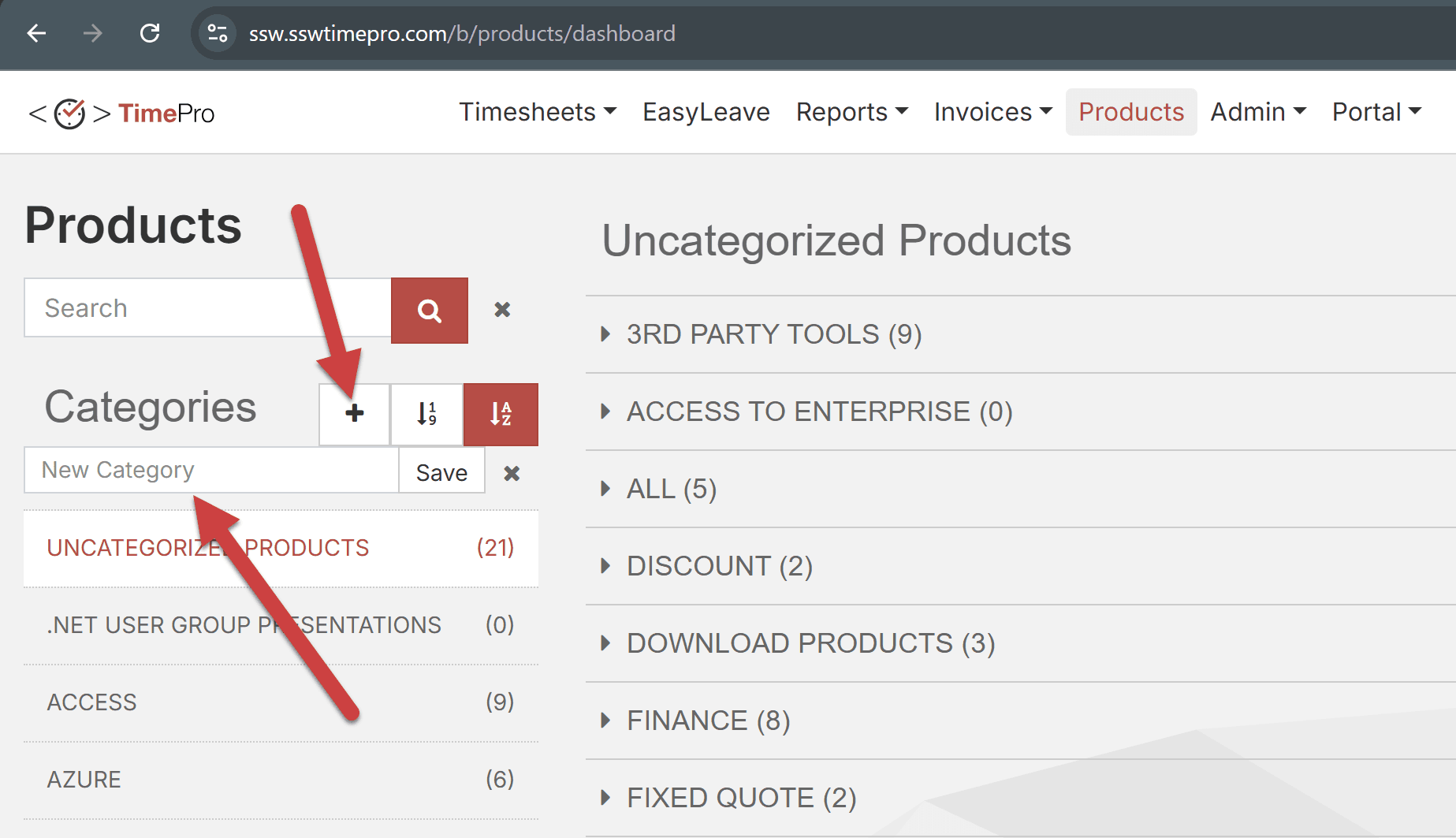 Figure: New Category
Step 2 - Create the product
- Select the target category in the left panel
- Click Add Product
- Fill in the form
- Click Save
| Field | Required | Notes |
|---|---|---|
| Product Name | ✅ Yes | Display name used across TimePro and invoices |
| Product ID | ❌ No | Up to 6 characters. Leave blank to auto-generate. Must be unique if set manually |
| Product Categories | ❌ No | Assign one or more categories. Pre-filled with the category you came from |
| Head | ❌ No | Short description for the website |
| Sort (for WWW) | ❌ No | Display order on the website |
| Image Path | ❌ No | Relative path on ssw.com.au (preview shown in the form) |
| URL | ❌ No | Link for the website |
| ❌ No | Contact email for the product | |
| Display on the Web | ❌ No | Show on the SSW website |
| Is Popular | ❌ No | Highlight on the website |
| Is Training | ❌ No | Mark as a training product on the website |
| Allow Discount | ❌ No | Allow client/product discounts to apply |
| Note | ❌ No | Internal notes |
You return to the dashboard with the new product listed under its category.
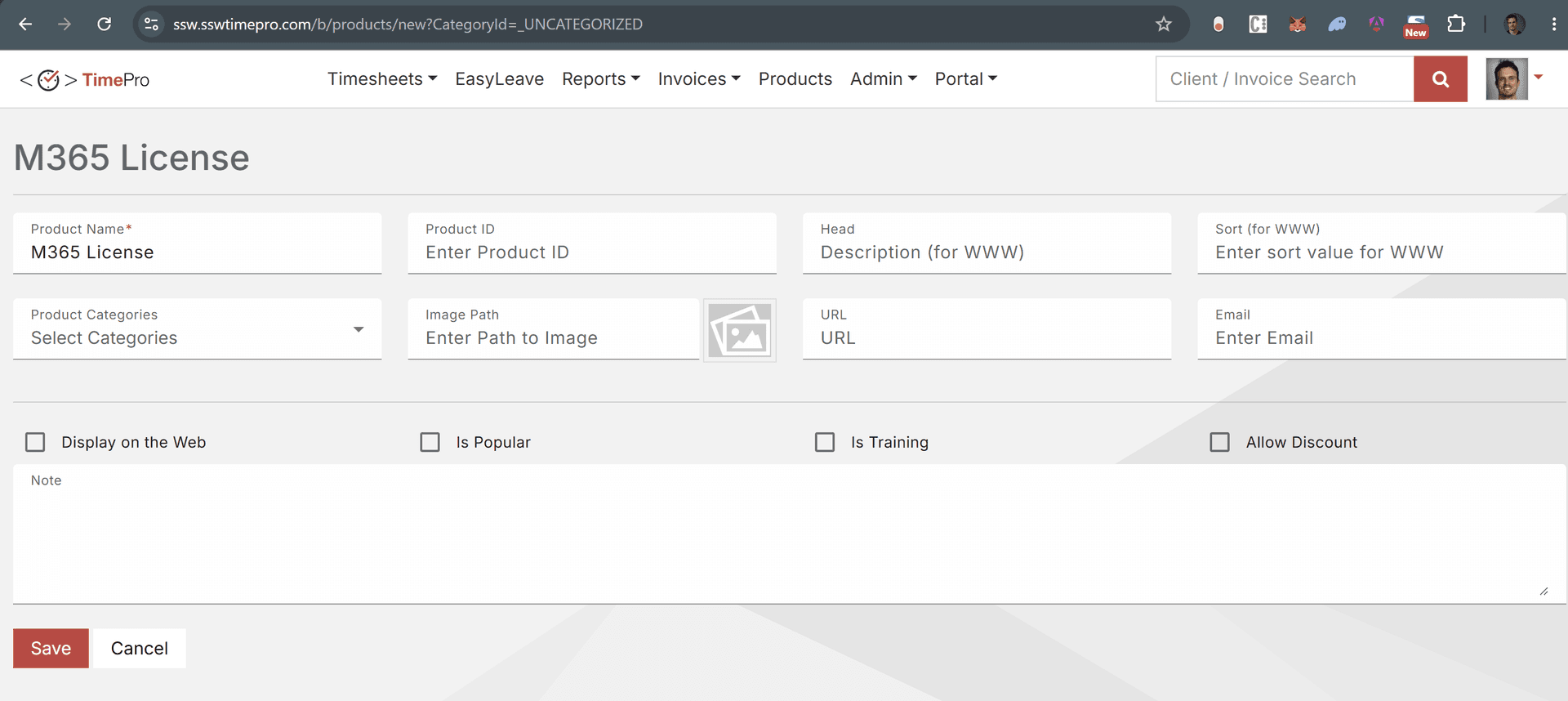 Figure: New Product
Step 3 - Add a SKU (required to invoice)
A product is not billable until it has at least one SKU.
- On the dashboard, find the product and click Add SKU
- Fill in the form
- Click Save
| Field | Required | Notes |
|---|---|---|
| SKU Name | ✅ Yes | Name shown on invoices (e.g. Annual Support) |
| SKU ID | ❌ No | Up to 6 characters. Leave blank to auto-generate |
| Product | ✅ Yes | Pre-filled when adding from the dashboard |
| Currency | ✅ Yes | Billing currency |
| Cost | ❌ No | Your cost |
| RRP | ❌ No | Recommended Retail Price |
| Selling | ❌ No | Default sell price on new invoice lines |
| Account | ✅ Yes | Revenue account for Xero/accounting |
| Fixed Price / Prepaid | ❌ No | Used for Time & Materials invoicing |
| Unit / First Invoice Period / Subsequent Invoice Periods | ❌ No | Defaults for recurring invoice templates |
| Display on the Web / On Sale | ❌ No | Website visibility |
| Description for WWW | ❌ No | Public description |
| Note | ❌ No | Internal notes |
The SKU appears under the product on the dashboard. You can now add it to invoices.
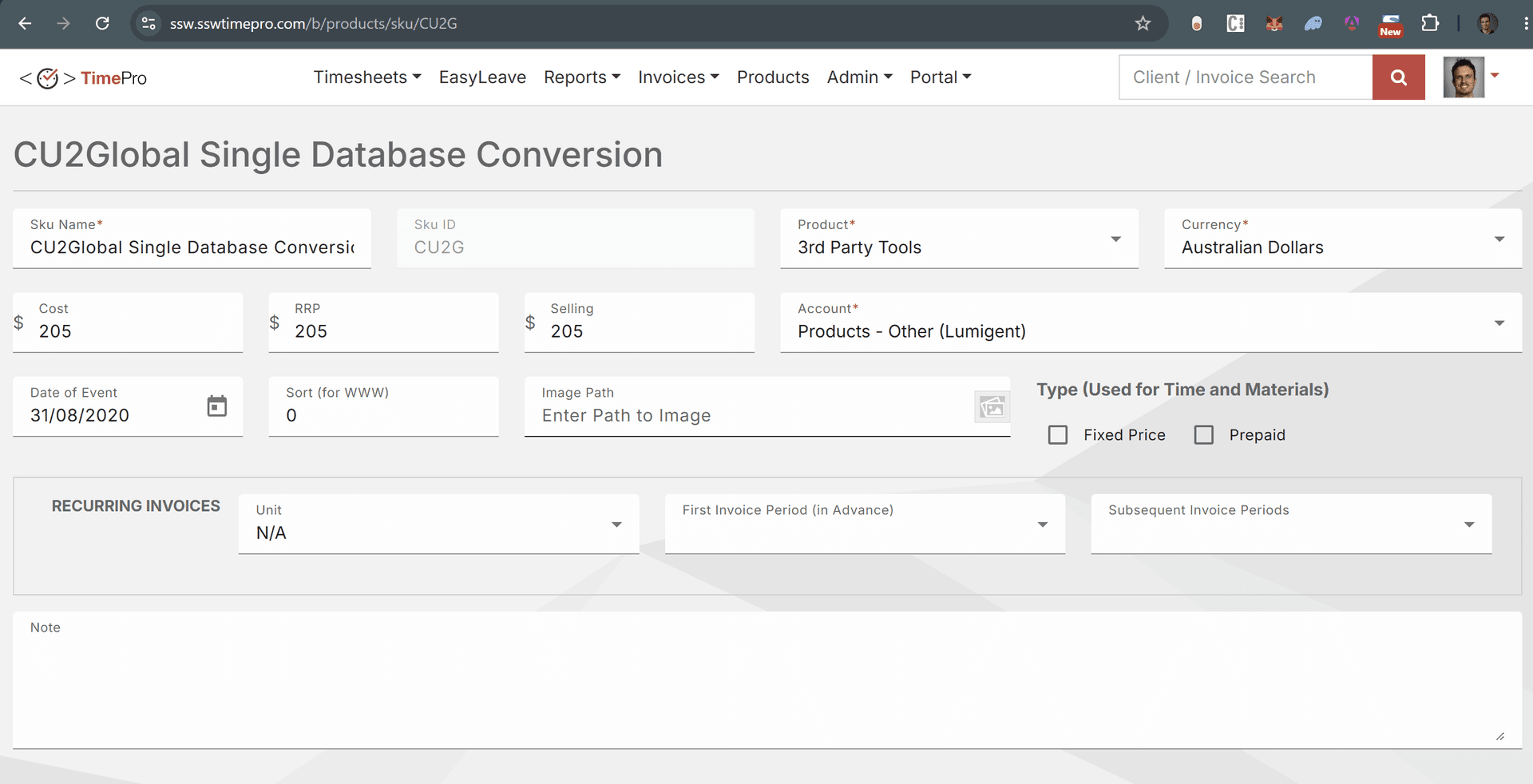 Figure: New SKU
After setup - using products on invoices
Once a product has SKUs:
- New Invoice - use Add Invoice Item, pick the Product, then the SKU. Cost, RRP, and Sell default from the SKU.
- Recurring Invoice Template - add the same product/SKU lines; SKU recurring settings can pre-fill billing periods.
- Client discounts - set a default discount on the client, or override per product under Admin | Clients.
When editing a SKU, the Invoices table shows past invoice lines that used that SKU.