Table of Contents
Create a new tenant
When you sign up for SSW TimePro, you create a tenant - your own dedicated instance of the application. Each tenant has its own database and URL - e.g. contoso.sswtimepro.com. This docs page explains the full flow from registration to completion.
Navigate to the SSW TimePro Website
- Go to sswtimepro.com and click the "Register now" button. This takes you to the provisioning site where you can create your tenant.
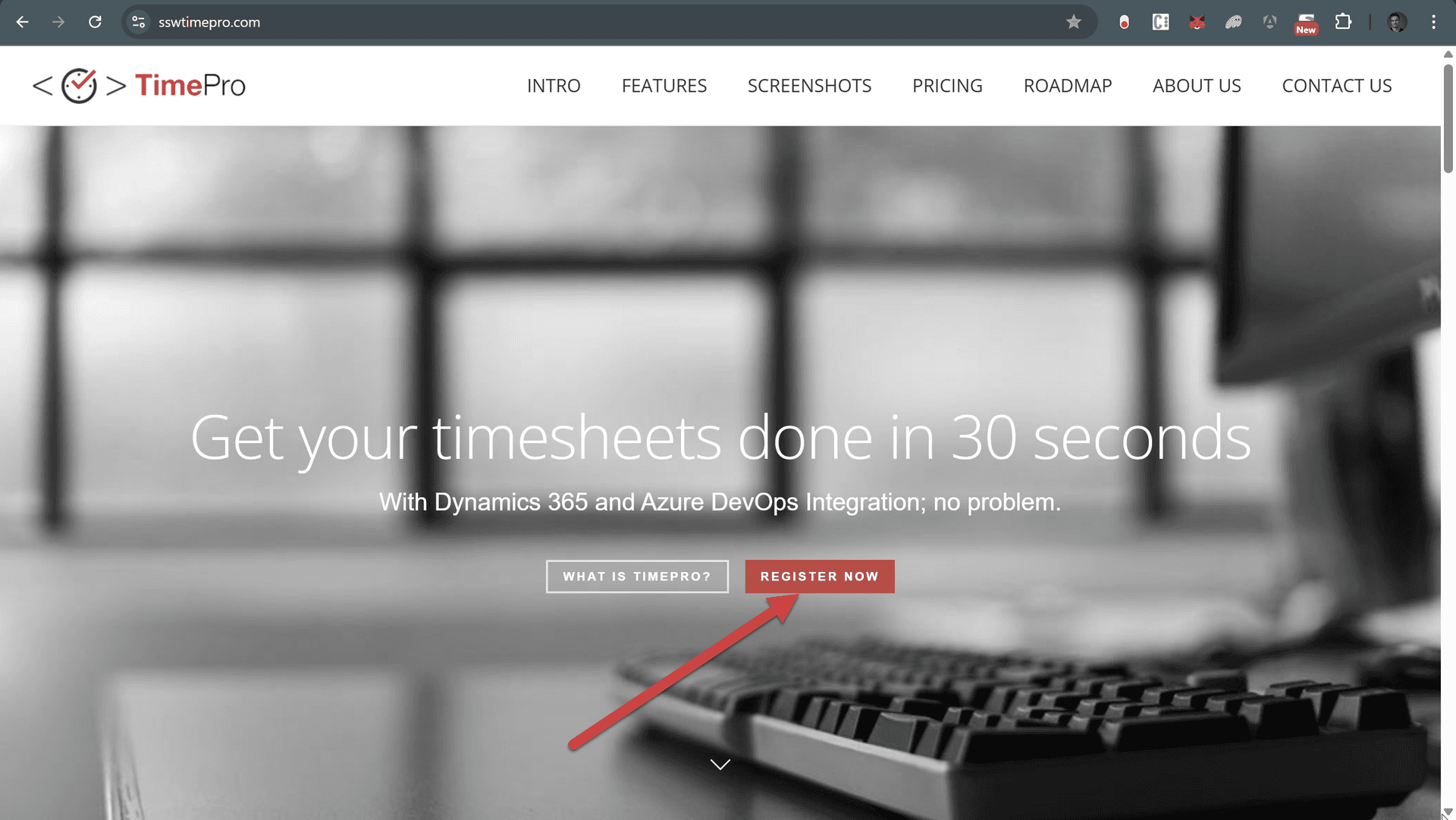
Figure: sswtimepro.com | Click the “Register now” button
Fill Out the Provisioning Form
Your First Name, Last Name, and Email are already pre-filled from your identity provider and cannot be edited.
- Company Name - Important: this becomes the subdomain of your tenant URL - e.g.
contoso.sswtimepro.com. As you type, the form shows a preview of your tenant URL and runs an availability check (✅ Available or ❌ Unavailable) - Phone (optional) - Your phone number. Required only if you tick "Would you like a call to assist with setup?"
- Would you like a call to assist with setup? (optional) - If ticked, SSW will contact you to help with onboarding. Phone becomes required.
- Use sample data (optional) - If ticked, your tenant is created with full sample data: a demo employee, sample clients, projects, iterations, plus all essential categories. If unticked, you get only essential categories - no sample employees, clients, or projects.
- reCAPTCHA - This verifies you're human and must be done before submitting.
- Create Tenant - This will create your tenant and provide the URL to access it.
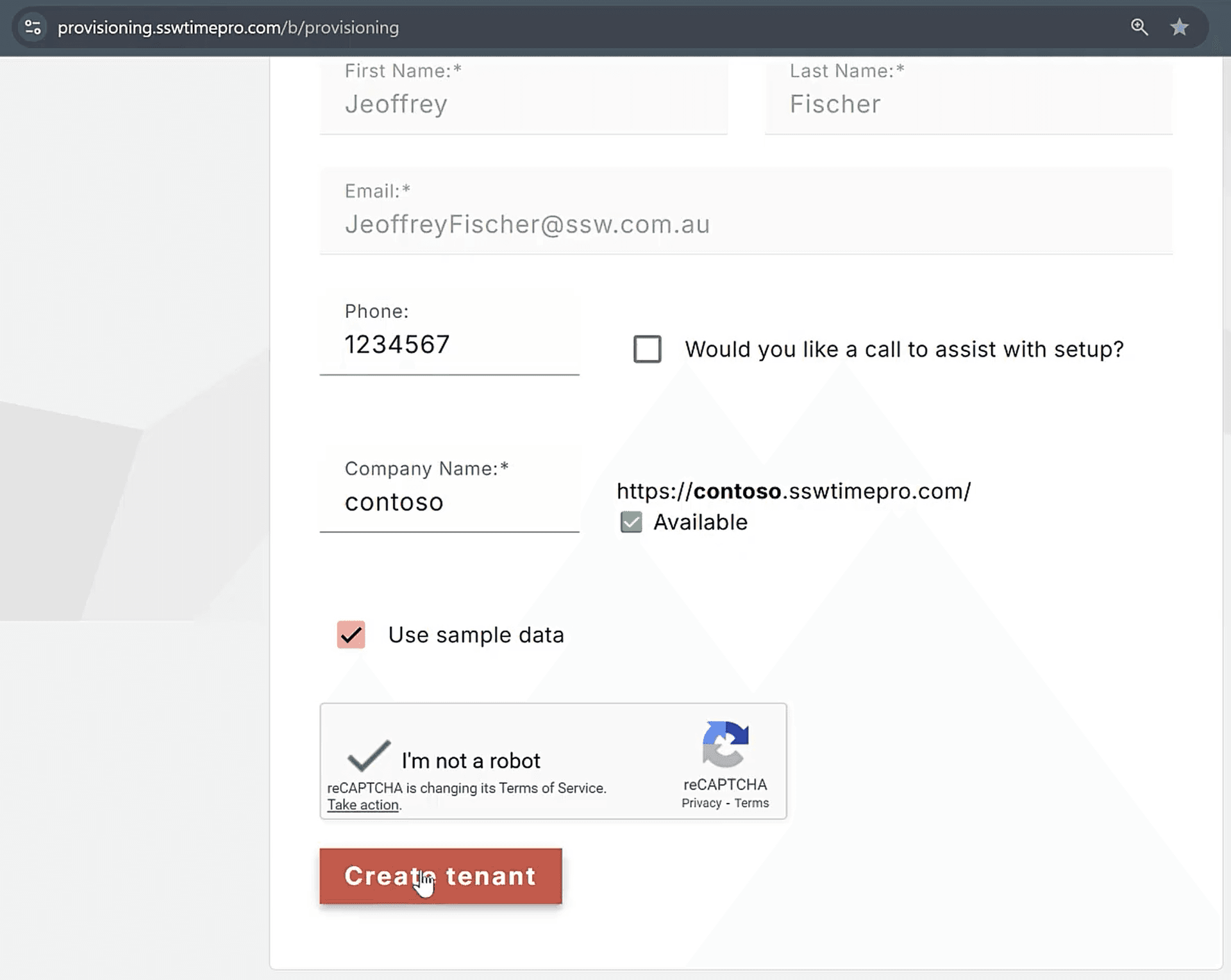
Figure: Provisioning page - Create a tenant
Access your new tenant
After submitting, you are redirected to the “Creating your tenant” page. This page shows the progress of your tenant creation. When provisioning is finished, the title updates to "Your tenant is now ready!"
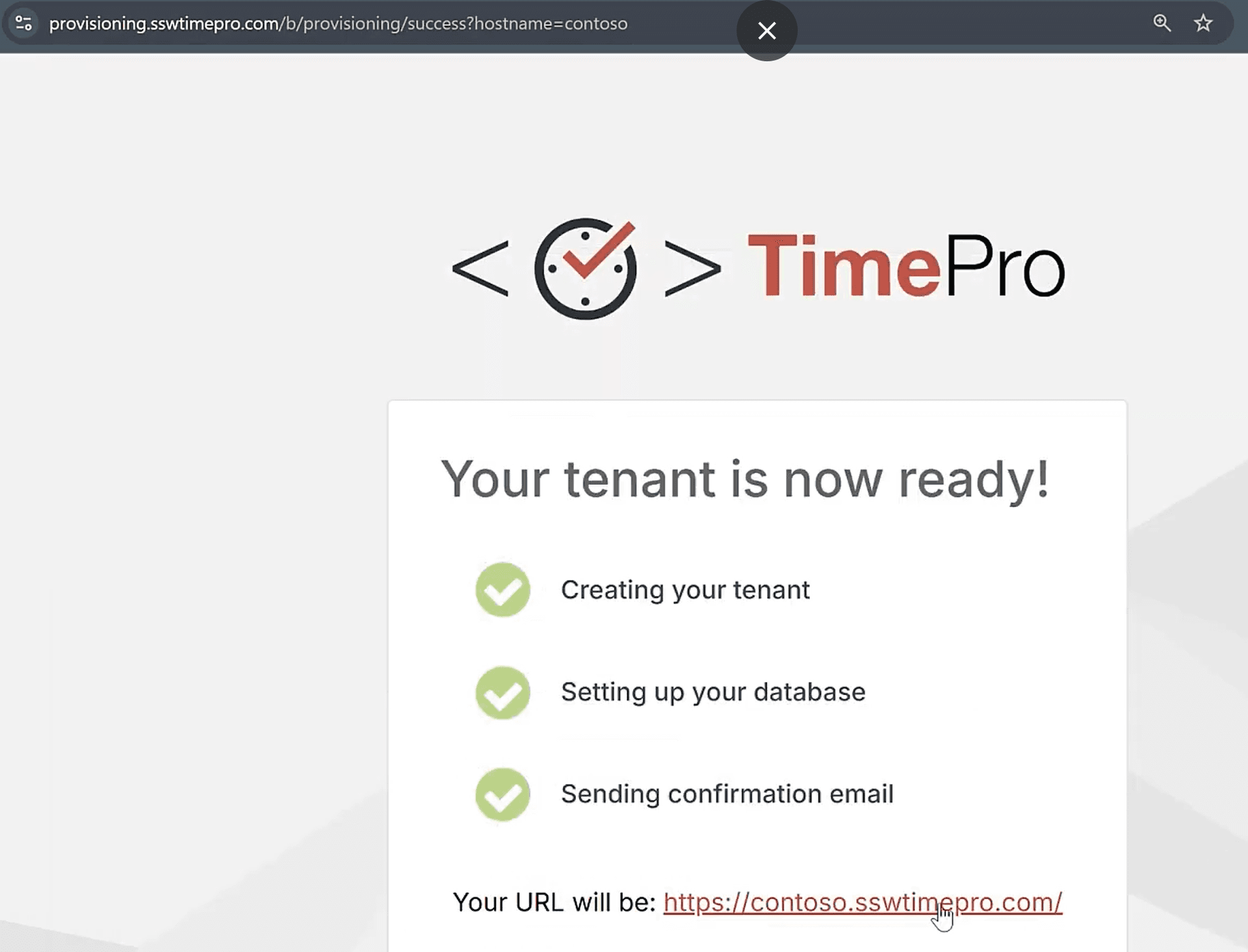
Figure: Your new tenant is now ready
Your new tenant URL is displayed on the page - e.g. contoso.sswtimepro.com. You will also receive a confirmation email containing the tenant URL.
- Click your tenant URL. This will open your tenant in TimePro.
Note: If you chose “Use sample data”, your tenant will already contain sample clients, projects, employees, and categories so you can explore TimePro right away.
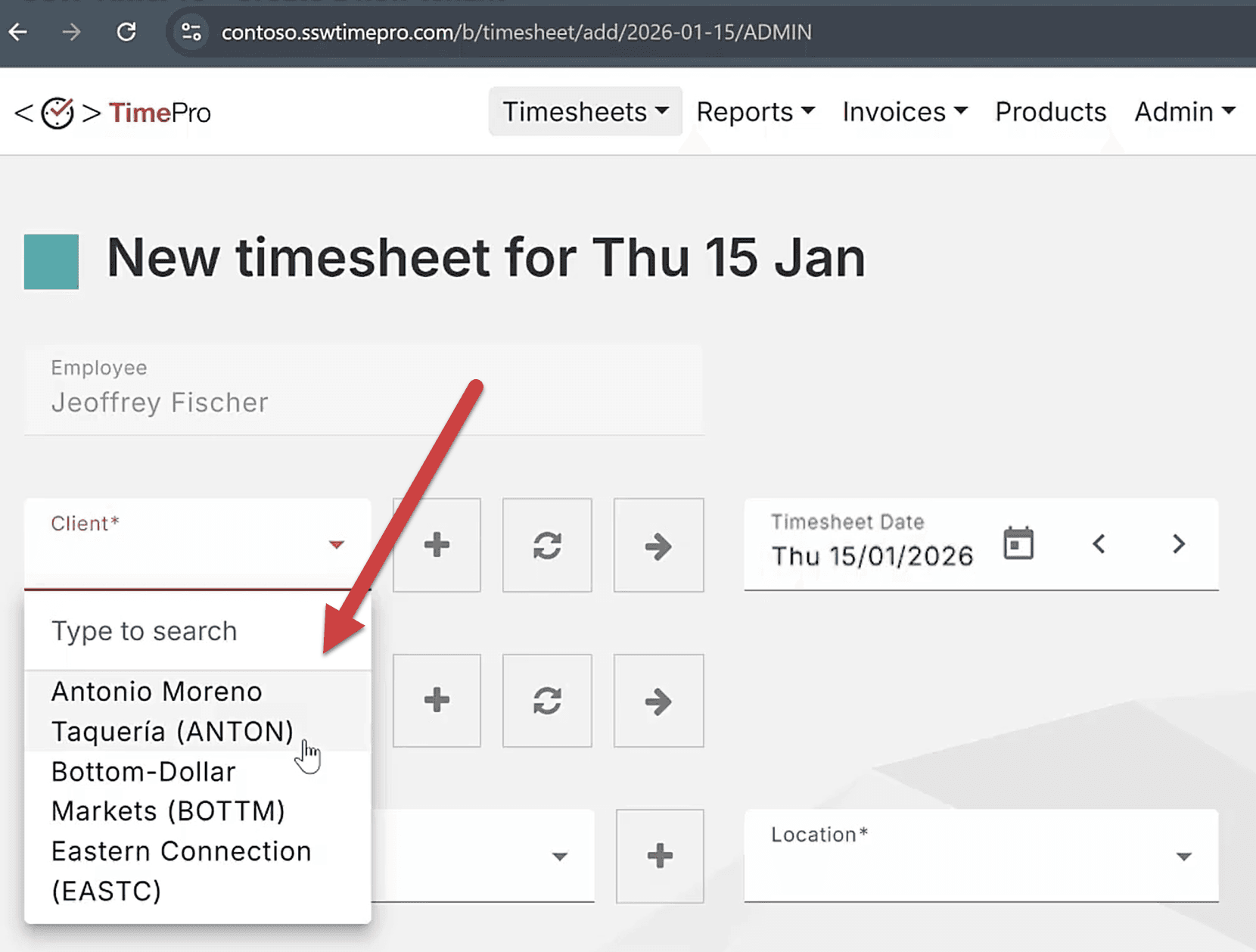
Figure: Sample data in your new TimePro tenant
Troubleshooting
- Company Name is Unavailable - The Company Name must be unique across all TimePro tenants. If you see ❌ Unavailable, try a different name (e.g. add your region or a number).
- Invalid Company Name - Company Name must be 3–50 characters and contain only letters, numbers, and underscores. Spaces and special characters are not allowed.
- Provisioning Error - If you see an error occurred while creating your tenant, the provisioning process failed. Contact the SSW TimePro support team for assistance.