Table of Contents
Manage PDF templates
Loading last updated info...
As a part of TimePro's invoicing service, you can generate a PDF version of the invoice you created. This guide walks you through how to set up PDF templates for your invoices.
Navigate to the Templates setting
- In the menu, go to Admin | Invoice Settings
- Scroll down and find the Templates section
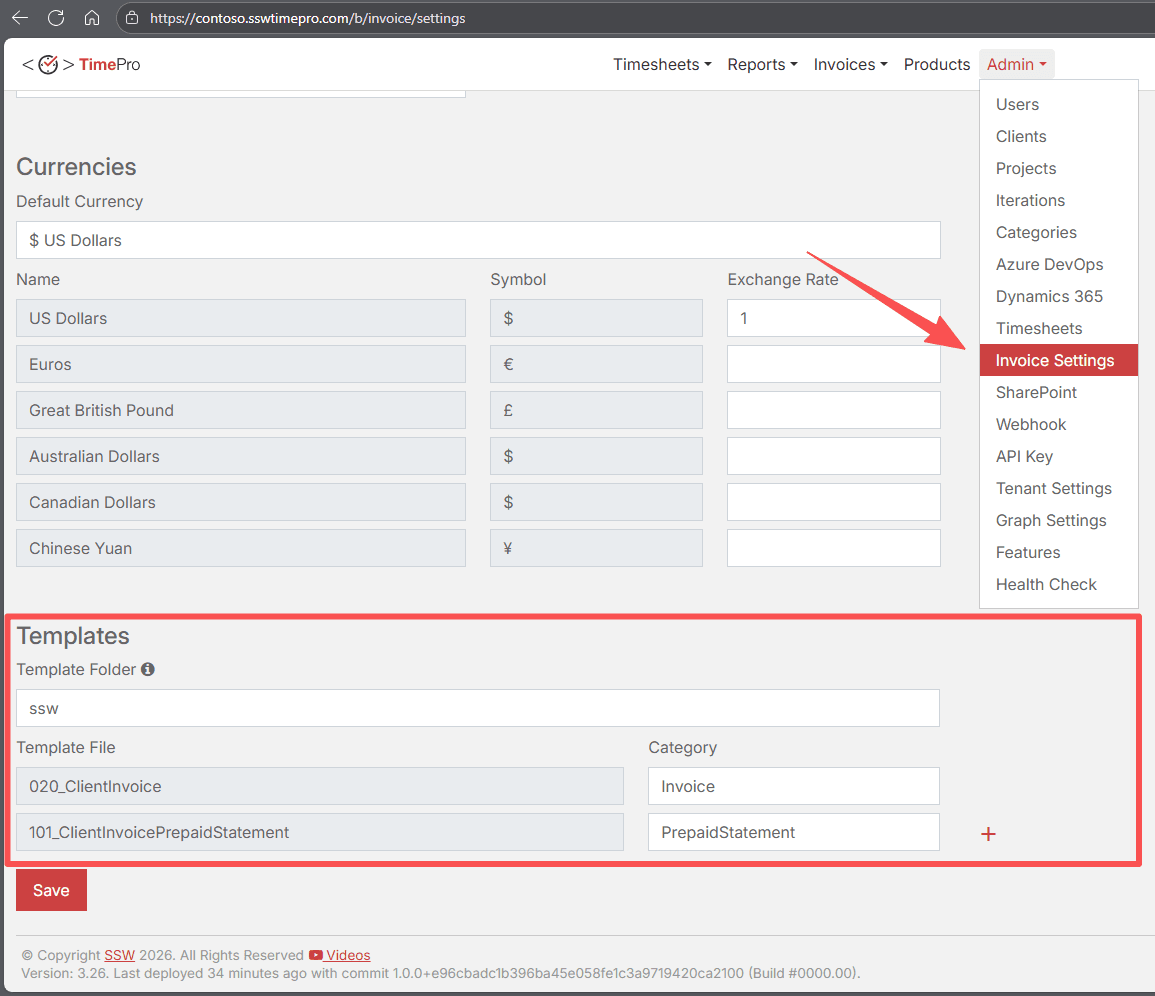 Figure: Where to find the Templates setting
Add a new PDF Template
TimePro uses SQL Server Reporting Services to generate PDF from invoices. You are given a designated template folder to host all your .rdl files upon initializing your TimePro instance.
To add a new template,
- Click the "+" icon next to the last template
- Fill in the corresponding .rdl file name in your template folder
- Choose a Category for the new template. e.g. “Invoice” if you're using this new template for invoice PDF.
- Click “Save” at the bottom
 Figure: Add a new template
Use PDF templates for invoicing
Now you can use the new template for your invoices.
- Open an invoice from Invoices | Search Invoices
- On the lower right corner, click View | PDF Invoice | Choose Template
Access from an invoice
You can also access this guide directly from any invoice by selecting View | Customize Report

Figure: Go to Invoice | View | Customize Report